Changelog

Session chat

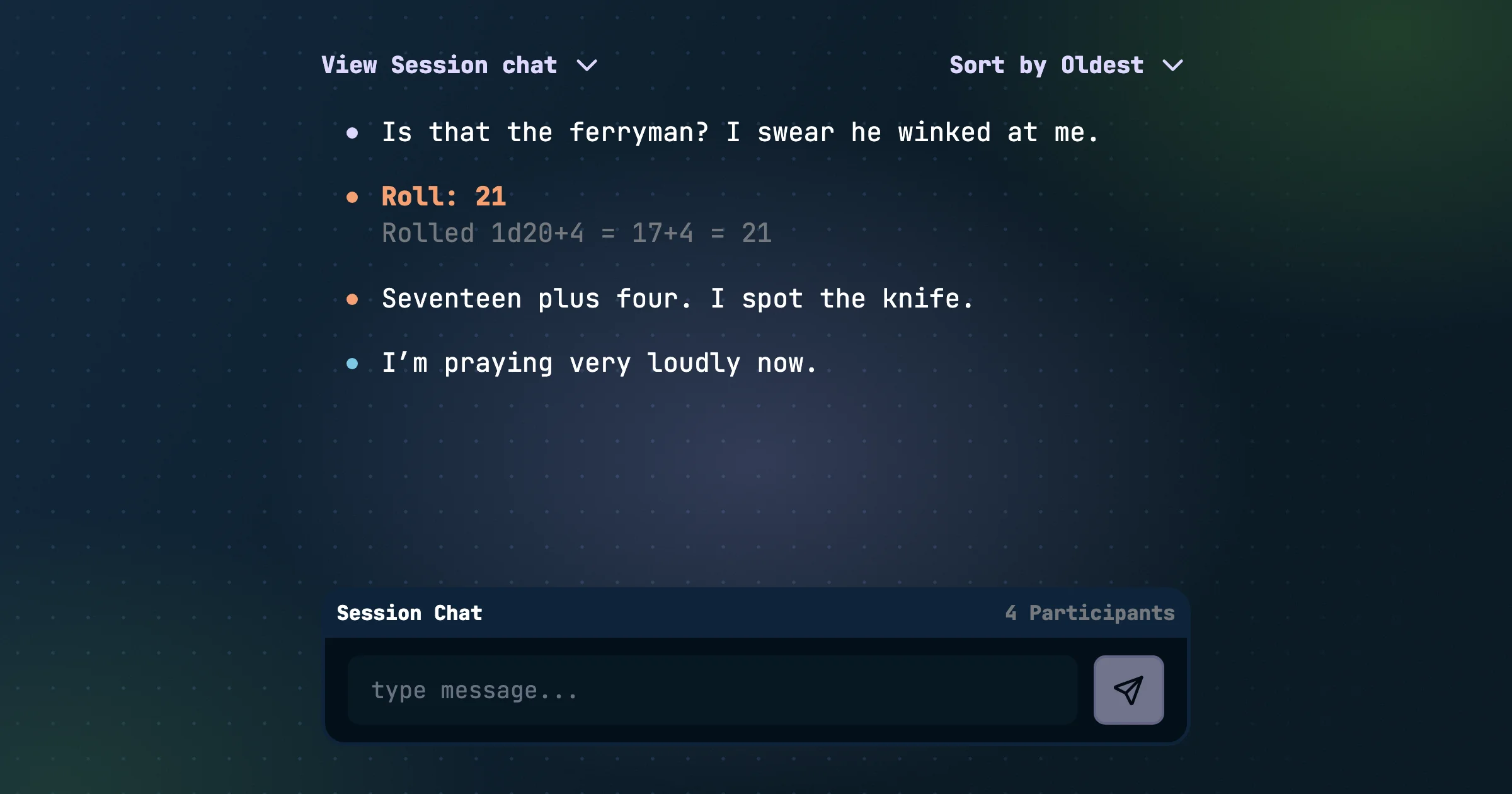
Session chat with player messages and a dice roll result, beside the message box

Party chat used to be one stream for everything: in-character banter, rolls, and "running five minutes late" all in one place. That can get confusing, so we split it up.

Realm chat and session chat

  • Realm chat is the out-of-character channel for the whole realm, and it's always on. It's what used to be called Party Chat and can be found in the upper right of the Gamestream.
  • Session chat is for the table during a live session. It sits beside the transcript, so the conversation and what's being said stay together. Only the people in the session can see it, like everything else from that session. When the session is over, it moves into the comment section of the session summary.

See Realm Chat and Session Chat.

Speak as your character

Messages and dice rolls in session chat now show the character you're speaking as, just like the transcript. Realm chat and comments stay out of character and show your name.

Rolls for the whole table

Rolls and actions from a character sheet now post to session chat, credited to that character. For example: "Attack: Hit · rolled 17 vs AC 15 · HP 12 → 7". Dice rolls work the same way.

Comments

Finished sessions and backstory explorations now have a comment thread. Talk about what happened after it's done. Audience members can read comments on anything they can see. People who were in the session can switch between comments and the session chat.
Character sheets

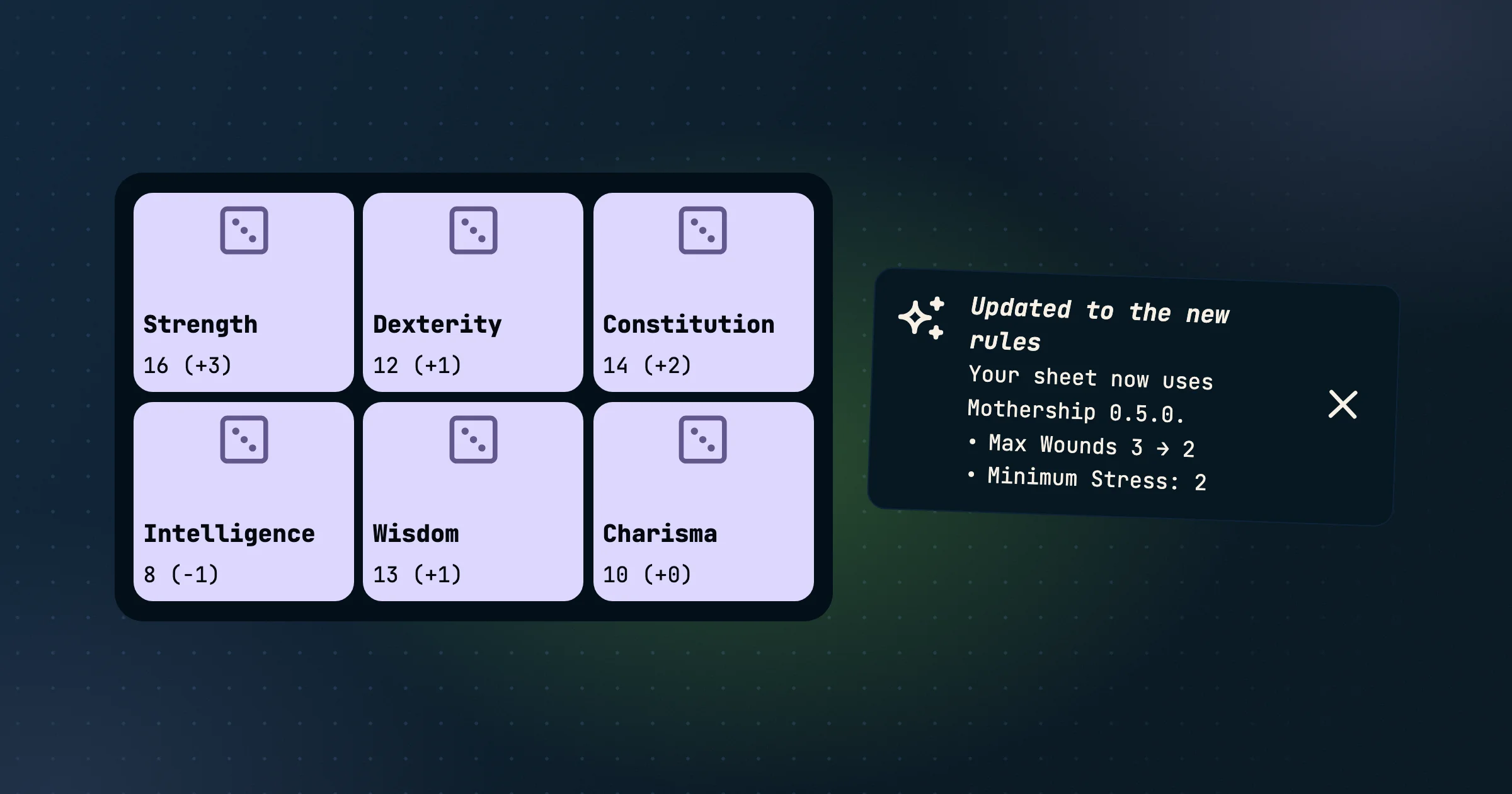
Six ability score roll buttons from a character sheet next to a rules update notice

Realms of Shod has always been system-agnostic. Now your character sheet can live in your realm too, whatever you play.

Sheets are built on Open Character Format, an open standard for tabletop characters. Each game is a pack that includes its own rules, so the sheet knows how your game works and what to roll, how damage lands, and when you level up.

Set up your game

Realm admins choose which games the party plays in realm settings. See adding games. Launch games include 5E SRD, Pathfinder, Forged in the Dark, Fate Core, MÖRK BORG, and Mothership.

Build and play

  • Guided creation. Walk through your game's own character creation one question at a time, or roll a random character. See creating a sheet.
  • Roll from the sheet. Checks, attacks, and saves ask only the questions that matter. HP changes run your game's own damage and healing rules.
  • Follow the rules. When your game calls for something, like a roll when you're Broken or a level-up, the sheet tells you.
  • Make it yours. Add custom items and reorder your lists.

Rules updates

When a game pack gets an update, sheets upgrade automatically, and you'll get a note listing anything that changed on yours. See rules updates.

Everything is in the Character Sheets docs, including the full list of supported games.

Entity History

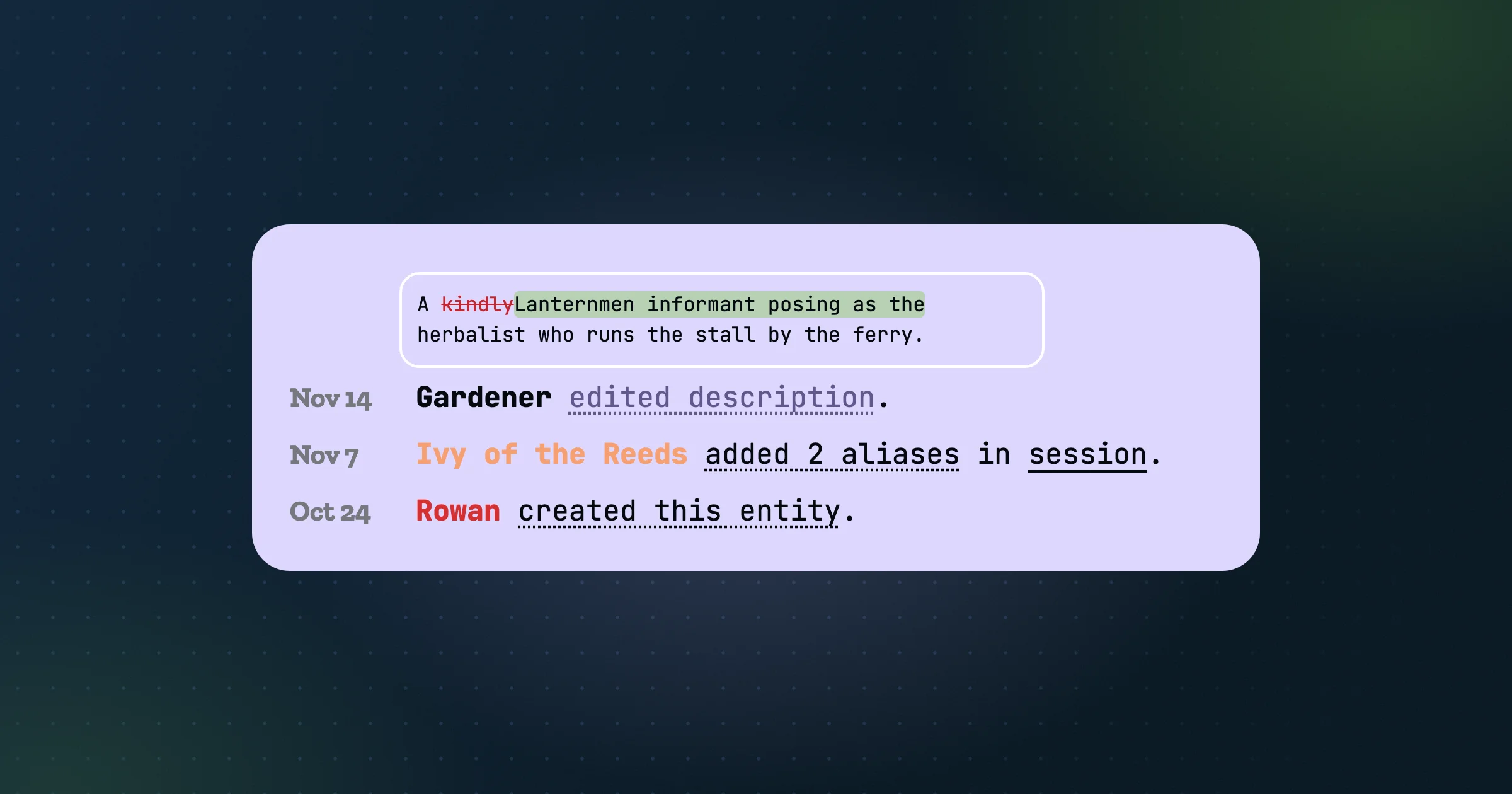
An entity's change history, with a popover comparing the old and new description word by word

With players, gardeners, the API, and AI assistants all able to edit your compendium, you need to know who changed what. Every entity page now has a History tab.

Read it like a story

History lists changes newest first, grouped into plain sentences: "Ash edited description and added 2 aliases in session." Hover or tap an underlined phrase to see exactly what changed. Descriptions show a word-by-word comparison, and relationships read as full statements. Mentions of a session or scene link straight to that moment in the transcript.

Every change is credited to where it came from: a person, a gardener, the API, MCP, or an import.

Undo it

  • Restore previous version puts a description back the way it was before a change.
  • Restore relationship brings back a deleted relationship with its original visibility.

Restoring a description also tells the Gardener to leave it alone, so it won't redo the change you just undid. Deleted relationships are now kept rather than erased, which is what makes restoring them possible.

People without edit access see that something changed, but not the details.

See History and Rolling Back Changes.

The Gardener

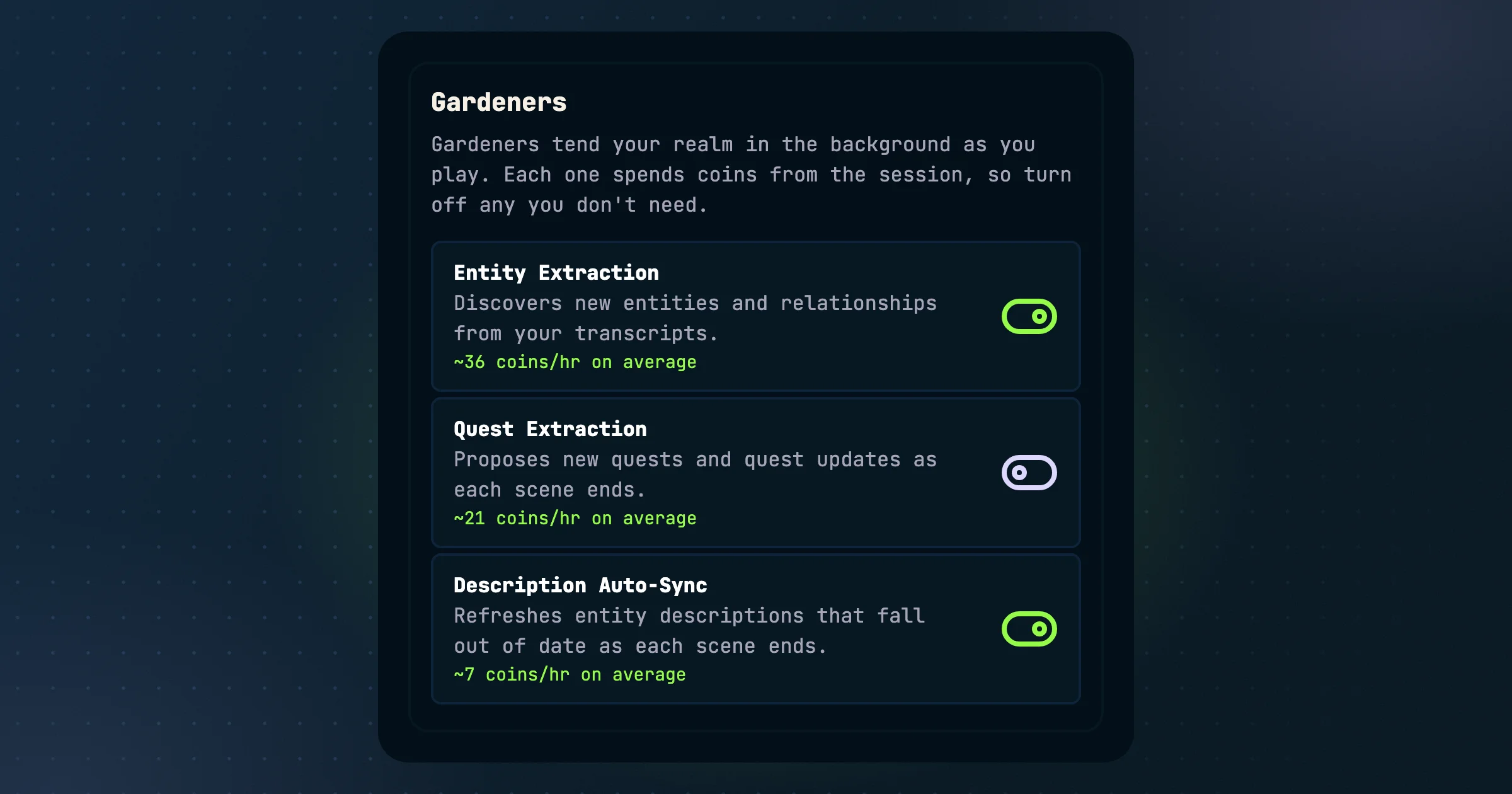
Realm settings for three gardeners, Entity Extraction, Quest Extraction, and Description Auto-Sync, with on and off toggles

We've done work across the platform to reduce hourly coin spend to a level economical for most players. We want your coins to go as far as possible. As we continue to build more intelligence-driven features into Realms of Shod, we want to make sure you are able to control just how much you are spending. To this end, we've added gardener configuration that allows you to turn on or off the background processes that run during your sessions.

Descriptions that keep up

After each scene, Realms of Shod checks whether it changed what defines anyone or anything involved, like a new allegiance, a death, or a secret revealed. The entries most in need of an update are rewritten using everything new since their last update: the conversation around each mention, scene and session summaries, backstories, and relationships. A passing mention doesn't count. Something that changes who they are does.

If you've just rewritten a description by hand, it's left alone. Every change is recorded in the entry's History, where you can roll it back.

Choose your gardeners

Each realm has three gardeners, and owners and admins can switch each one on or off in realm settings:

  • Entity Extraction. Adds new characters, places, and relationships from play.
  • Quest Extraction. Proposes and advances quests.
  • Description Auto-Sync. Keeps descriptions current.

Each one shows its average coin cost per hour, so you can decide what's worth it for your table. Names already in your compendium are still linked in transcripts for free, even with Entity Extraction off. See Coins.

Quests

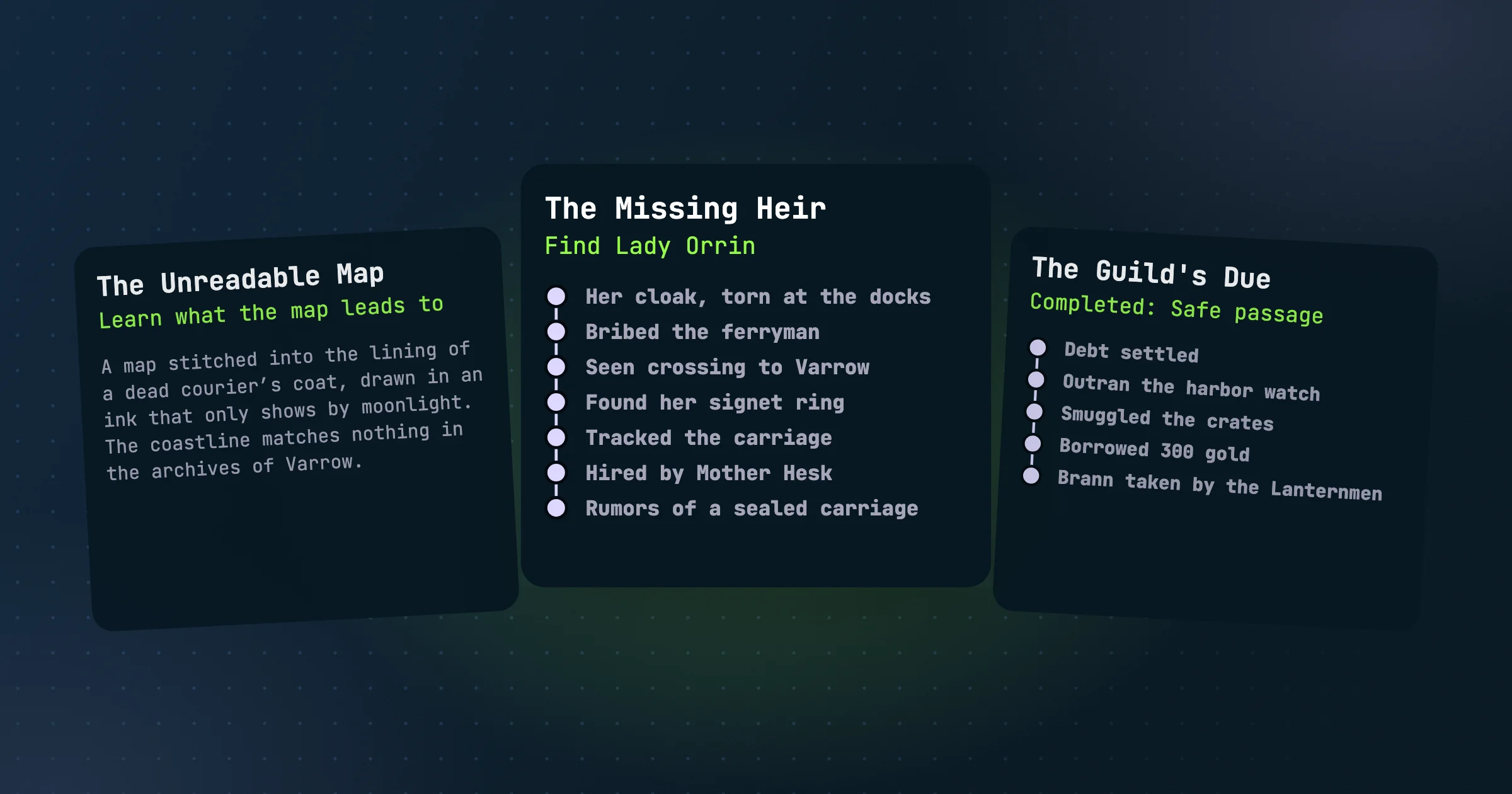
Three quest cards: a proposed quest, an active quest with its progress steps, and a completed quest

Every campaign has story threads like the missing heir, the debt to the thieves' guild, or the map found in the darkest dungeon. Quests give those threads a home in your compendium, and they keep themselves up to date as you play live.

Picked up from play

When a scene is saved, Realms of Shod looks for new hooks and proposes them as quests, linked to the involved compendium entities. Existing, open quests are checked at the same moment to see if any progress has been made or if the exciting conclusion ends a quest. Ended quests can be marked as Completed, Failed, or Abandoned. See automatic extraction.

A board for every thread

  • The quest board groups quests into Proposed, Active, and Ended.
  • Each quest has a hook, a goal, an optional reward, tags for how it plays, and a timeline of every step.
  • Quest updates appear in the gamestream as they happen.

You can also create and edit quests by hand. Seed quest hooks and let Realms of Shod keep track of them for you.

Who sees what

Quests have permissions like the rest of your realm compendium. Create private quests to track your character's hidden goal, and Realms of Shod will update it as you roleplay.

A new quest created in-session is shared with the players who were in that session, plus the realm creator. If everyone was there, it's public to the realm. See visibility.

Quests are also in the Quests API, the MCP server, and the compendium exchange (import/export).

Scenes split live

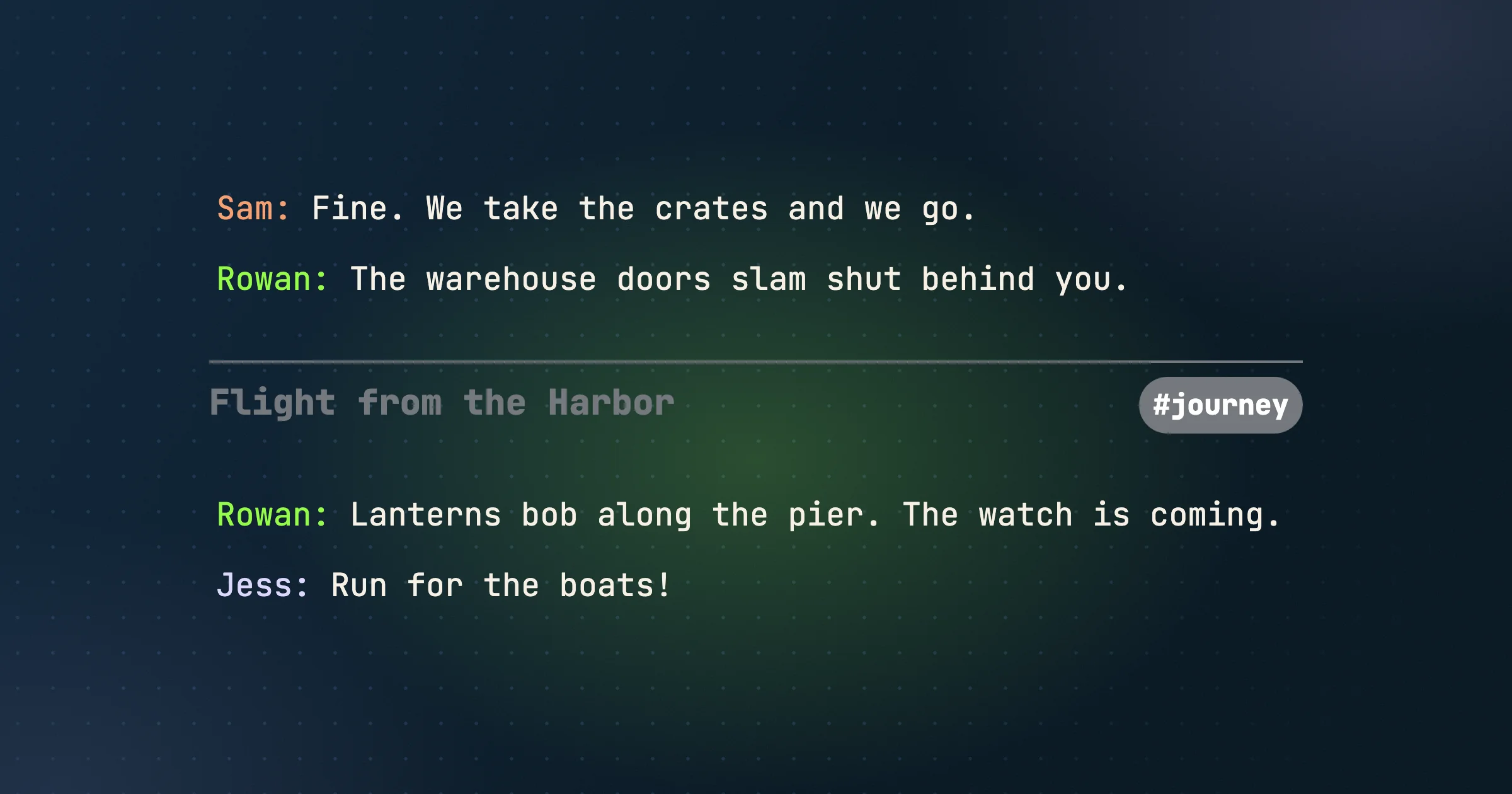
A live transcript split by a new scene divider titled Flight from the Harbor

Sessions are split into scenes so they're easier to browse and search. Until now we checked for scene splits once every fifteen minutes, so the scene you just finished could take a while to show up.

Now the transcript is checked about once a minute. As soon as a scene wraps up, it's split off, its characters and places are linked into the compendium, and its recap is written. You can scroll back to what just happened while you're still playing.

Smarter edges

  • A scene ends where the story moves on, not at a time limit.
  • Very short scraps at the end of a session are folded into the scene before them, so you don't get a two-line final scene.
  • Uploaded recordings and reprocessed sessions are split the same way.

Read about sessions and scenes and scene recaps.

Going public

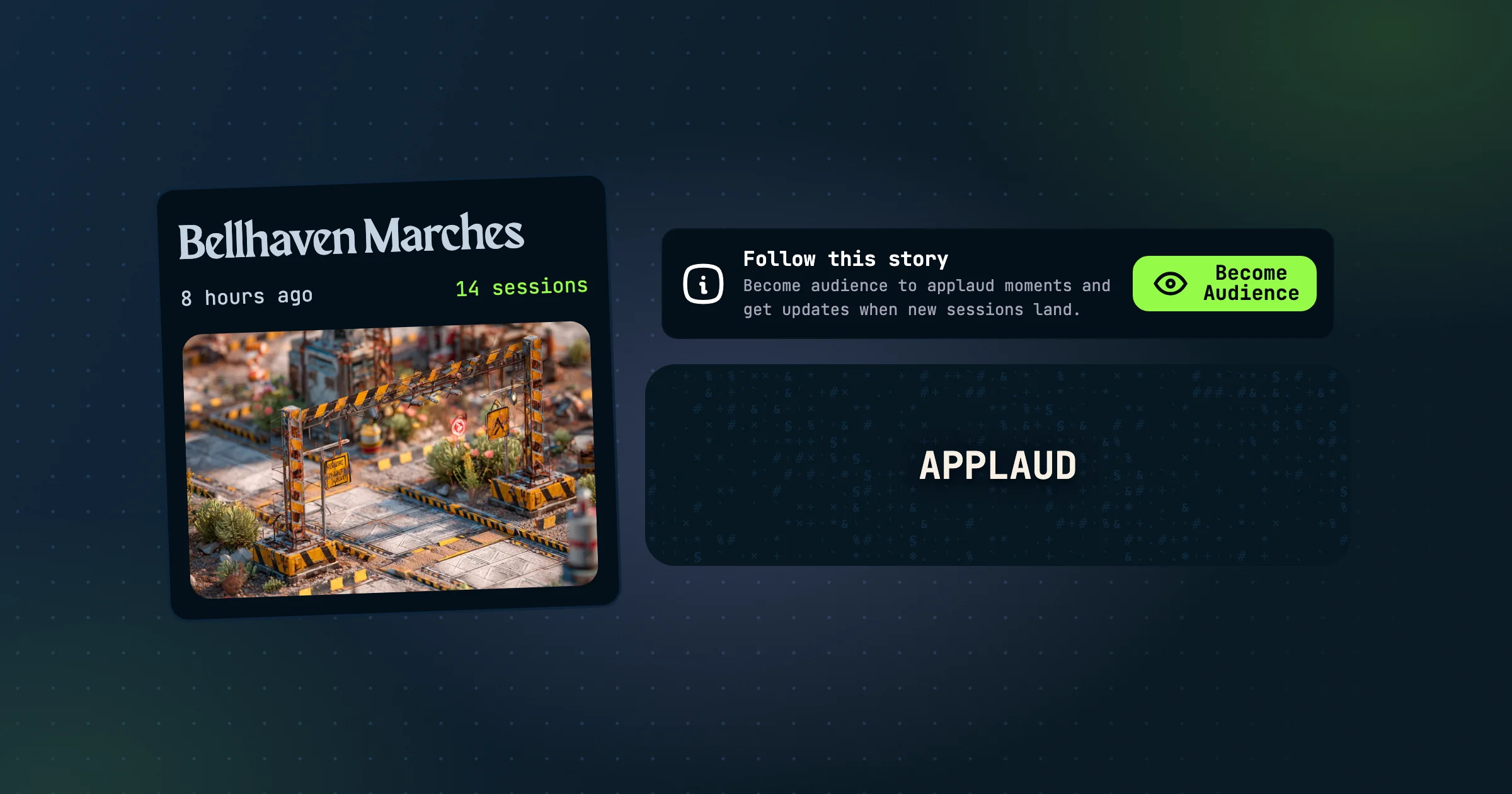
A public realm card for Bellhaven Marches next to a Follow this story banner and an Applaud button

We believe some campaigns deserve an audience. Storytellers and creators of actual plays, long-running worlds, and massive West Marches realms can now open their doors.

Public realms

Owners can take a realm public. For existing members, nothing changes, but logged-out visitors see a preview page with the realm's cover, how long you've been playing, its public compendium, and a teaser of the latest session. Logged-in visitors can go behind the scenes and browse the realm itself, read-only. Members see exactly what they always have.

Audience

Visitors can become audience to follow a realm's story. Audience members can read along, applaud moments, and get notifications, but they don't join sessions and don't count toward the realm's member limit of 48. Admins can manage the audience from the party panel, and promote someone to a full member.

Creator profiles

Before going public, you set up a creator profile with an avatar, background, bio, and links. It's your public page, and every public realm you run links back to it.

What stays private

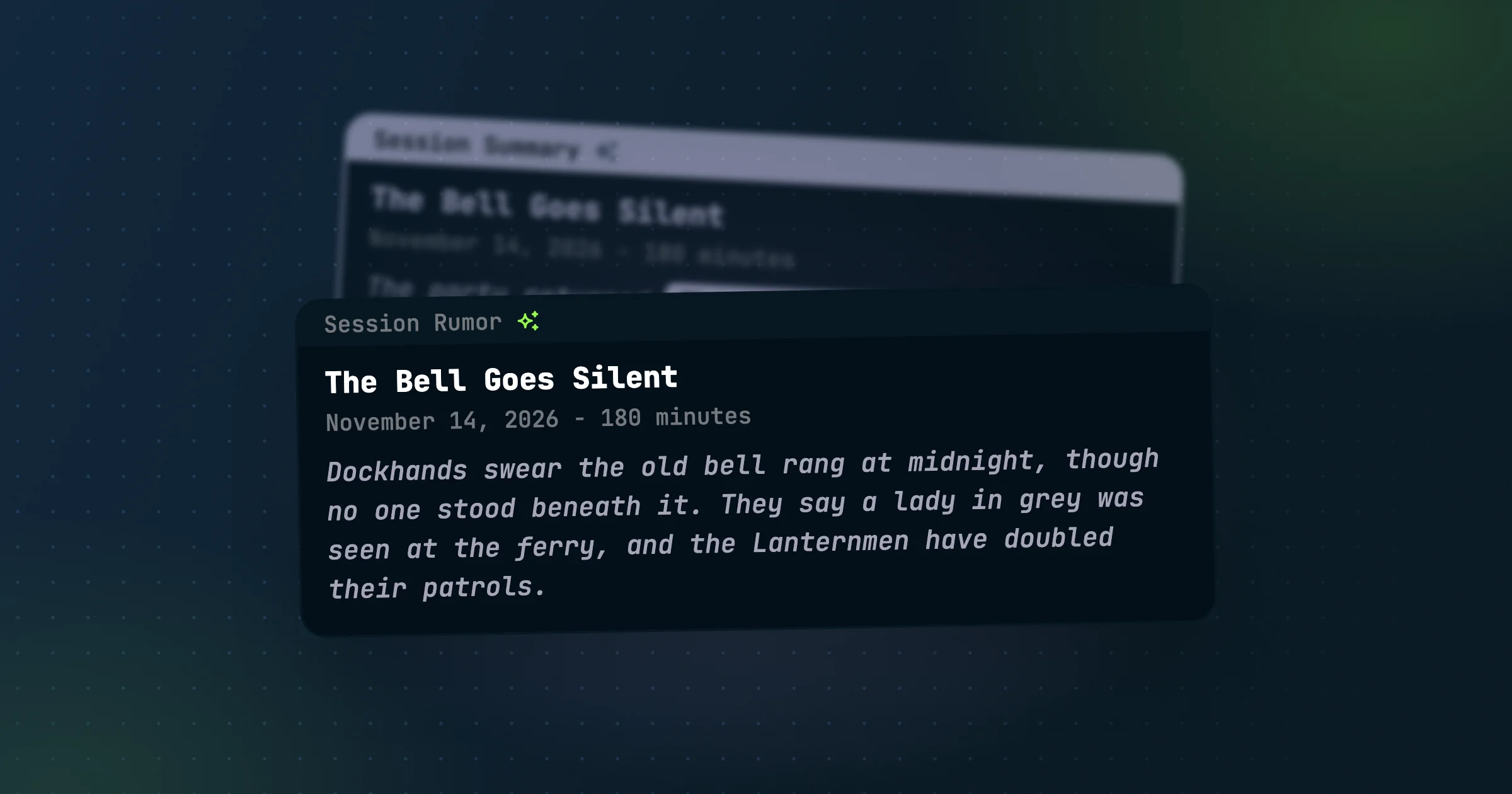
Only what you've made public in the compendium is shown. Notes always stay private, and session rumors decide whether visitors read full sessions with their transcripts or just the rumors.

Start with Public Realms, then read Promoting Your Realm.

Notifications and the weekly digest

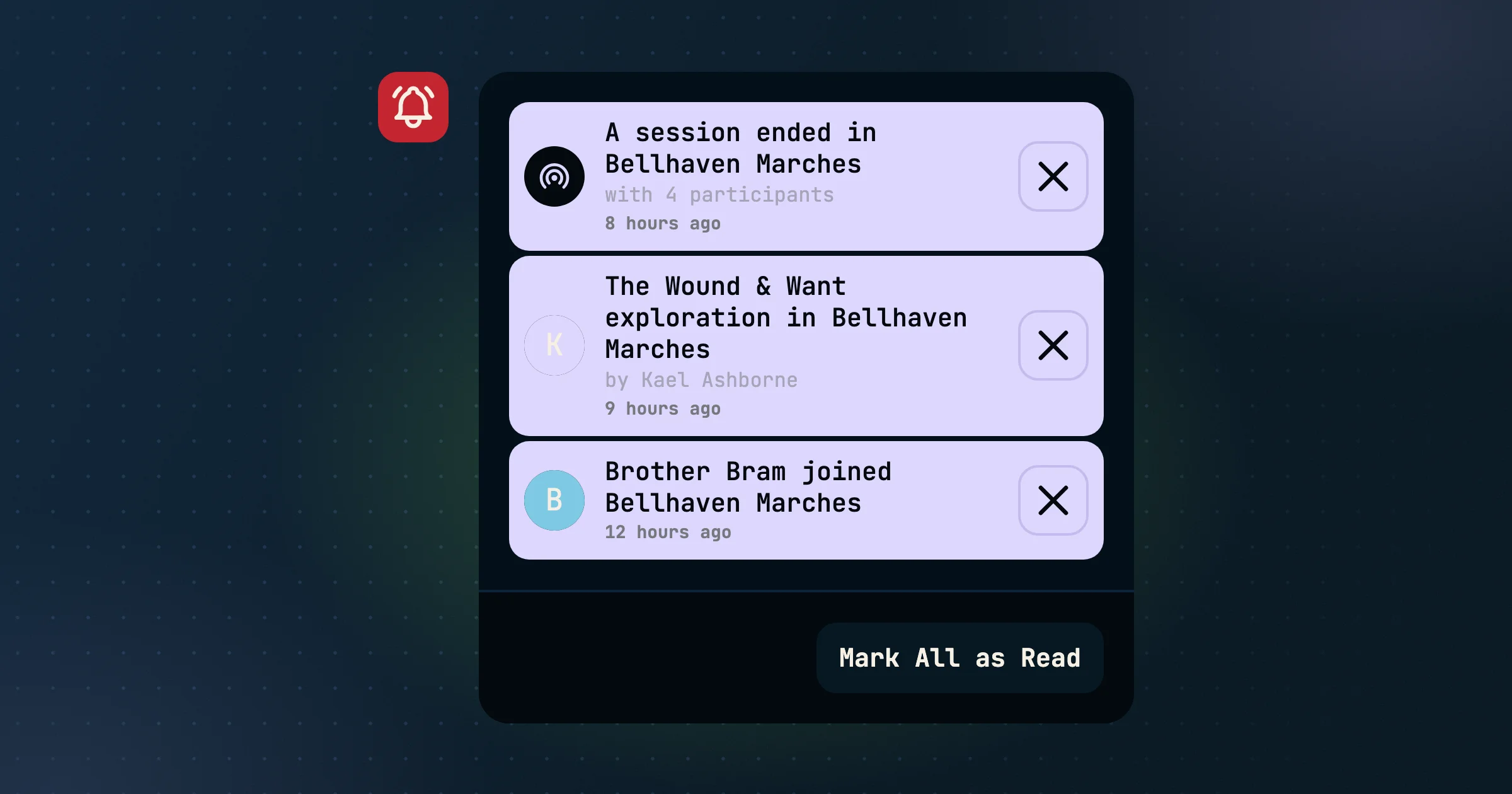
The notification drawer with a session ending, a backstory exploration, and a new member joining

With a richer, more social gamestream and 48-person realms running interleaving stories, a lot more happens outside of game night. Notifications and the new weekly summary emails will help keep you up to date.

The notification drawer

The notification bell rings in the H.U.B. and turns red when something new has happened in one of your realms. Open the drawer to see what:

  • A session ended.
  • Someone published a backstory exploration.
  • Someone joined the realm.
  • Your role changed.
  • A realm you're in went public.
  • Someone comments on or applauds your gamestream posts.

Each one links straight to the right spot in the realm. Clear them one at a time, or mark them all as read.

The weekly digest

Every Friday you'll get one email per realm summing up the week: sessions, backstories, new members, and how much the compendium grew. It only covers what you haven't already been sent, so nothing repeats. You can turn it off in your email preferences.

More in Using the H.U.B.. Audience members get notifications too. See audience notifications.

Mentions everywhere

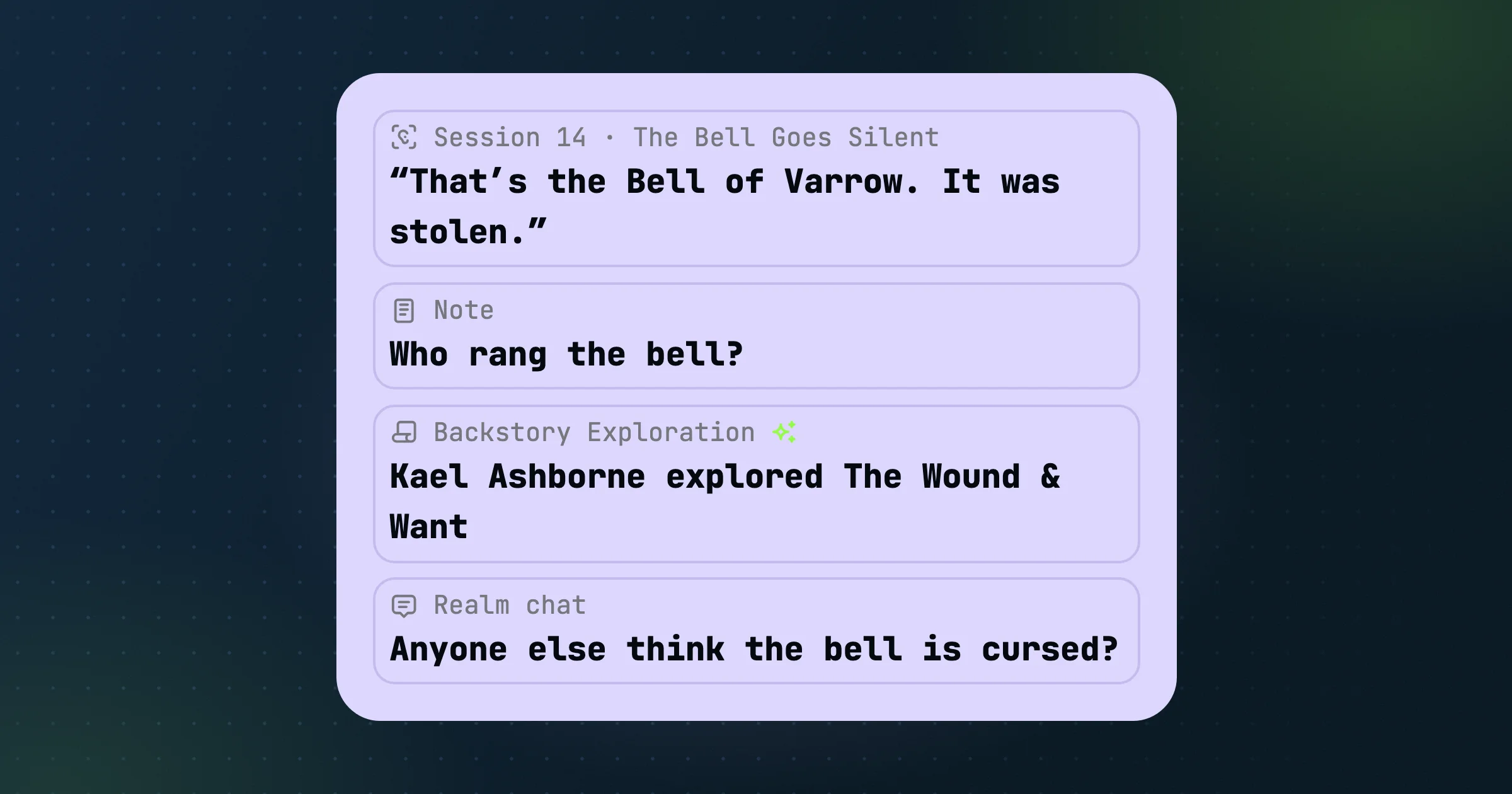
An entity's mentions: a transcript quote, a note, a backstory exploration, and a realm chat message

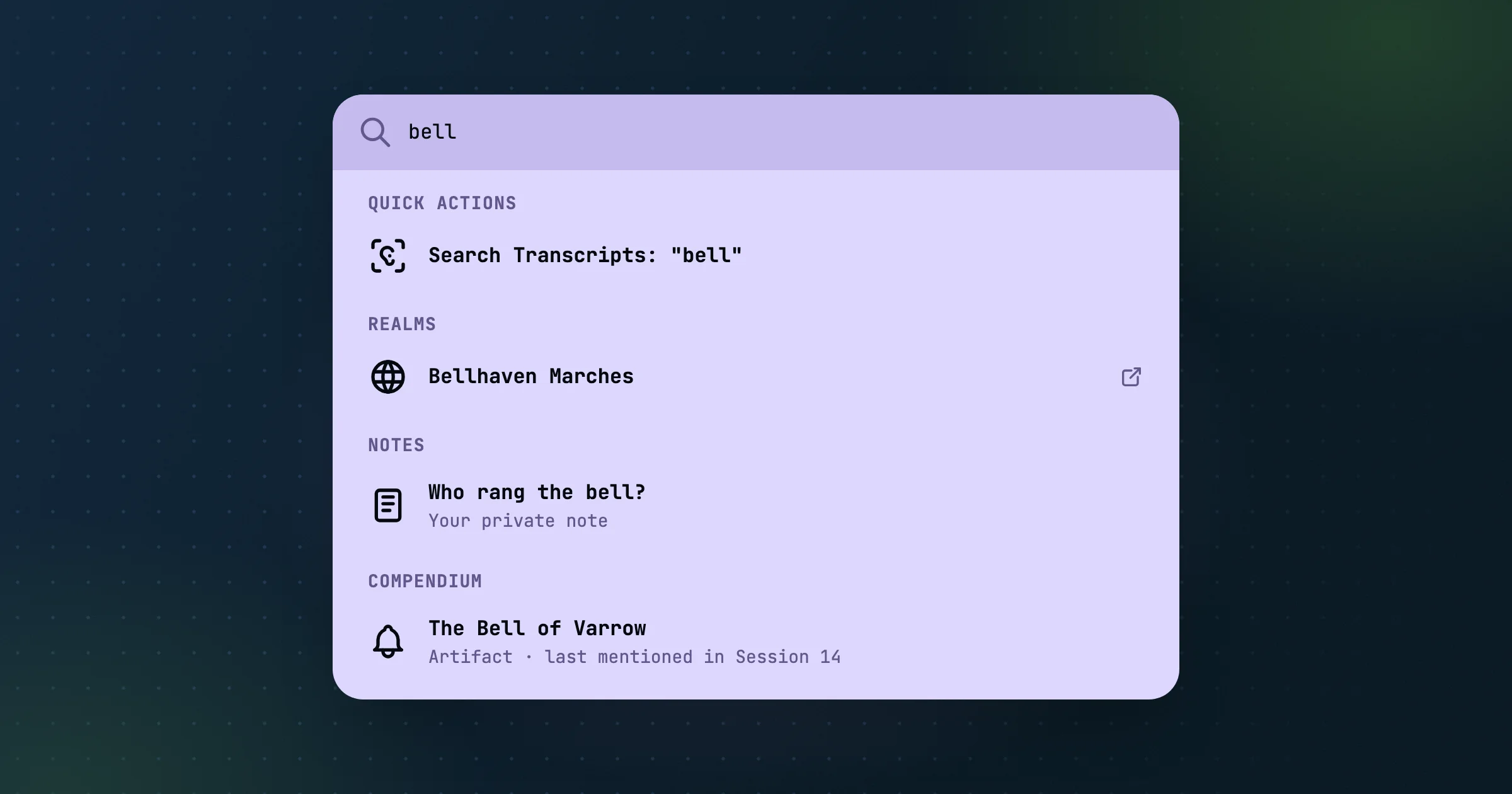
Compendium entities can be referenced across many surfaces in a realm. Each one tells a piece of its story. At the bottom of an entity's details is the new Mentions section that breaks it all down.

One feed for everything

Mentions brings together every place an entity comes up:

  • Sessions, grouped together, with the scenes it appeared in.
  • Chat messages sent outside a session.
  • Notes that link to it. Notes are counted as mentions for the first time.
  • Backstory explorations written about it.

It follows the same rules as everything else, so you only see mentions from sessions you're allowed to see.

Links in summaries

Session and scene summaries now link entities the same way transcripts do, so a recap is a doorway into your compendium graph. You can add links yourself when editing a summary with [[double brackets]].

Cleaner merges and deletes

Merging two entities now moves their mentions across every kind of content in one step, and deleting a message or transcript line removes its mentions so counts stay accurate.

See inline links and the entity panel.

Backstory Exploration

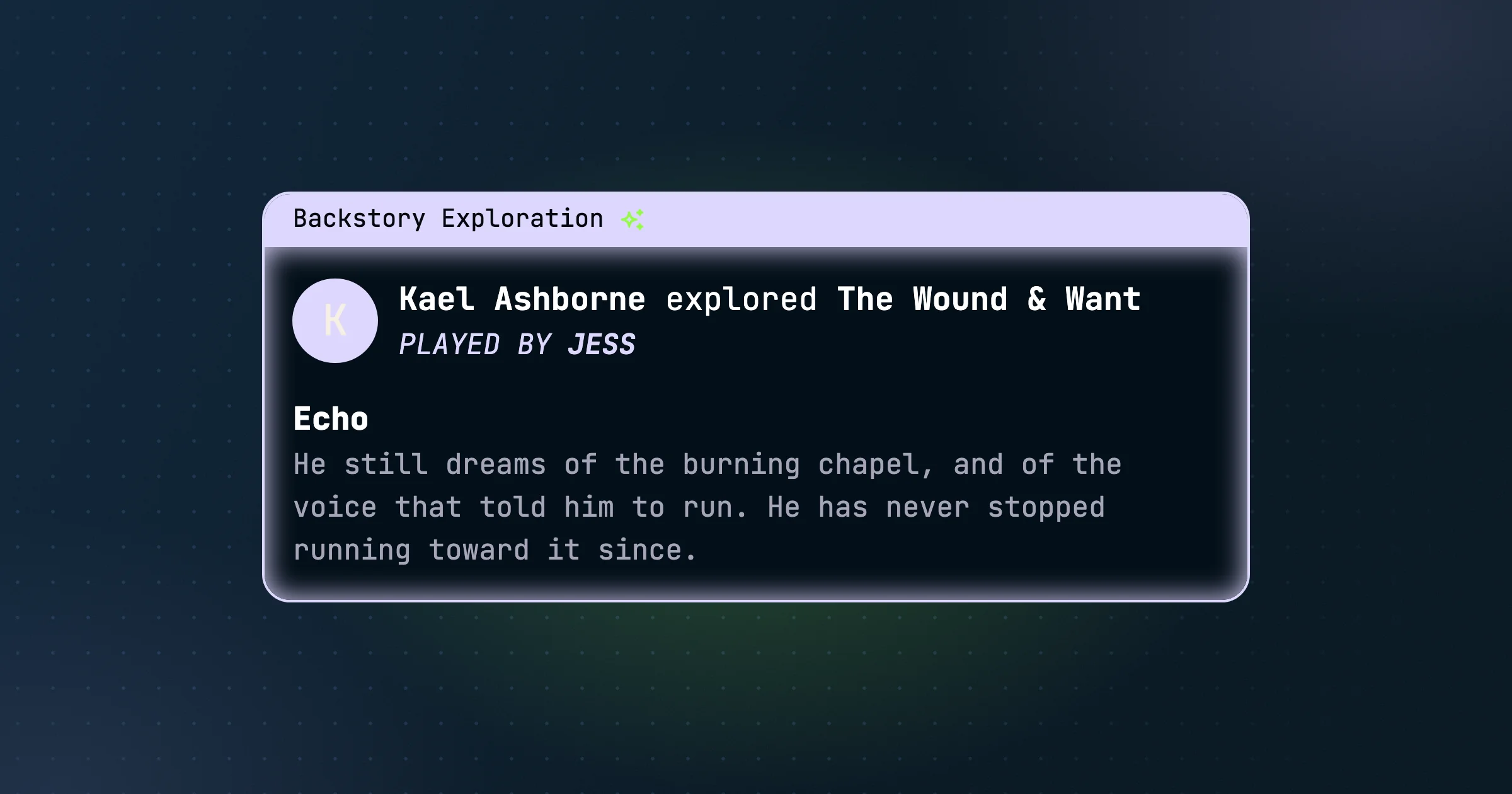
A Backstory Exploration card where Kael Ashborne explored The Wound and Want, showing the echo text

The best character moments don't always fit in a session. Backstory Exploration gives players something to do between games. From the Story Tools action in the realm sidebar, pick a character, answer a set of guided prompts in the character's voice, and publish the results to the gamestream for the rest of the realm to read.

Other realm members can jump into the gamestream comments about your character's backstory or applaud it.

Five ways in

  • The Wound & Want. What hurt them, and what they're reaching for.
  • The Five W's. Who, what, when, where, and why, the basics of where they came from.
  • Narrative Escalation. Pushes a thread further than you planned.
  • Relationship Meaning. About one specific relationship in the compendium.
  • Tangled Bonds. The knots between your character and the rest of the world.

You can do the same one again later. Each run is posted as a new entry, so you can watch a character change over a campaign.

Publish as shadow

Some backstories are secrets. Turn on Publish as shadow and your answers are rewritten into an in-world "echo" that hints at the truth. Everyone else only ever sees the echo, never what you actually wrote.

Find it in Story Tools, or read how it appears in the gamestream.