
The Interface
Media Controls
Manage your audio and video from the portal sidebar. Controls are always within reach regardless of which mode you are in.
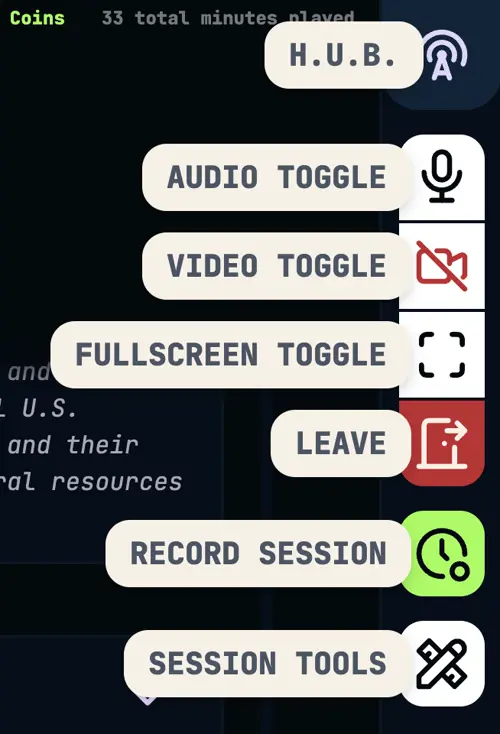
Click the door icon in the portal sidebar to join the videocast. Before connecting, a setup panel lets you choose your microphone and camera and preview your feed in real time. Your device preferences are saved so you don't have to re-select them each session.
Joining the videocast is required before session recording can begin. If the realm has video disabled, only audio setup is shown.
Once connected, the portal sidebar shows your active media controls.
Mute / Unmute
Toggles your microphone on and off. Your tile will show a muted badge and a red border when muted so the rest of the party knows.
Video On / Off
Turns your camera on or off. When video is off, your avatar replaces the video feed. Only available in realms with video enabled.
Fullscreen
Expands the video layout to fill the screen. Toggle again to return to the standard view.
Leave
Disconnects you from the videocast. The session continues for other members and you can rejoin at any time.
A green border appears around your tile automatically when the platform detects you are speaking. No action is needed — it is always active while you are connected and unmuted.
Once you have joined the party, a record button appears in the portal sidebar. Starting a recording kicks off live transcription and all other AI features for the session. Only a Storyteller with a coin balance can start a recording.
A stop button replaces the record button while a session is active. Stopping ends the session and triggers the full post-session pipeline — summary, compendium updates, and transcript processing.