
The Interface
Navigation
Move between a realm's three modes using the mode navigator, access tools through the always-present portal sidebar, and link directly to any part of a realm.
The mode navigator sits at the top of every realm view. Click any mode to switch to it. The navigator collapses automatically after a few seconds and reappears when you interact with it.

You can also use the left and right arrow keys to cycle between modes without reaching for the mouse. The navigator will briefly appear to confirm the switch.
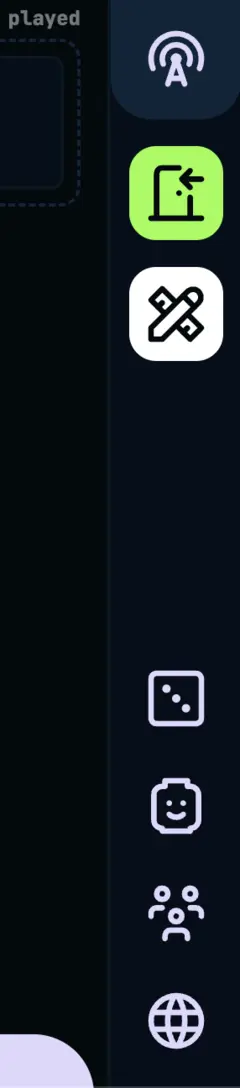
The portal is the vertical sidebar pinned to the right edge of every realm view. It is always visible regardless of which mode you are in, and holds the controls that apply across the whole realm rather than to any single mode.
H.U.B.
The broadcast icon at the top navigates back to the H.U.B., your home base outside of any realm.
Story Tools
Quick access to story-related actions for Collaborators and above: create an entity or note, upload table audio for transcription, or start a backstory exploration.
Enter realm
The door icon lets you join the videocast. Entering the videocast is required for session recording to begin.
Dice roller
Opens the dice roller so you can roll from anywhere in the realm without switching modes.
Character
Manage your in-realm character. The minifig icon opens your character sheet and settings.
Members
The people icon opens realm membership controls: view current members, share the invite code, and manage access.
Realm Settings
Only visible to Admins and Owners. Opens realm-level configuration and management options.
Each mode has its own URL, so you can link directly to any part of a realm. The Compendium is the most useful destination to share: send someone straight to your world database without them having to navigate there manually.
/realms/:realmId/compendium
/realms/:realmId/compendium/entities/:entityId
The other modes follow the same pattern:
/realms/:realmId/gamestream
/realms/:realmId/transcripts